
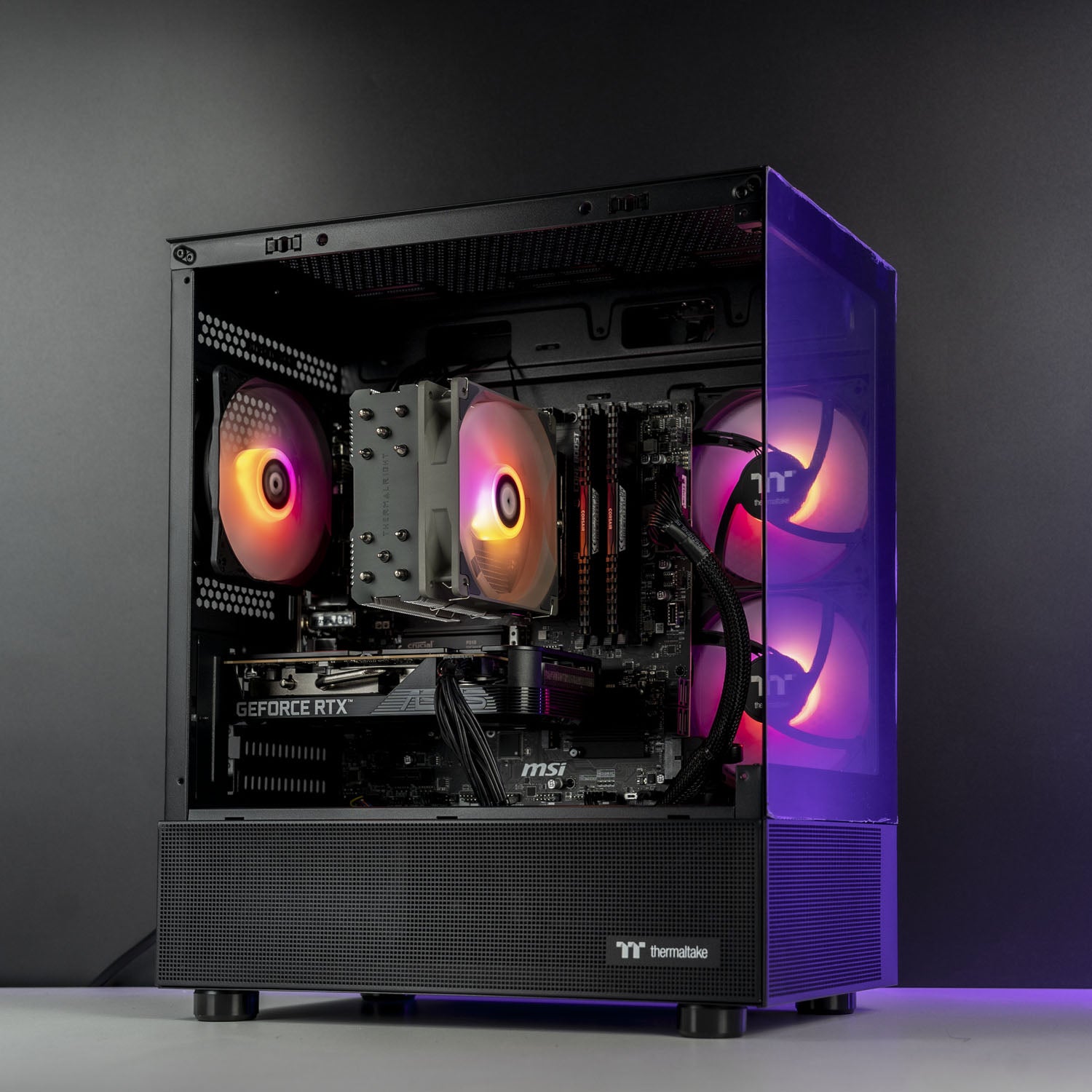

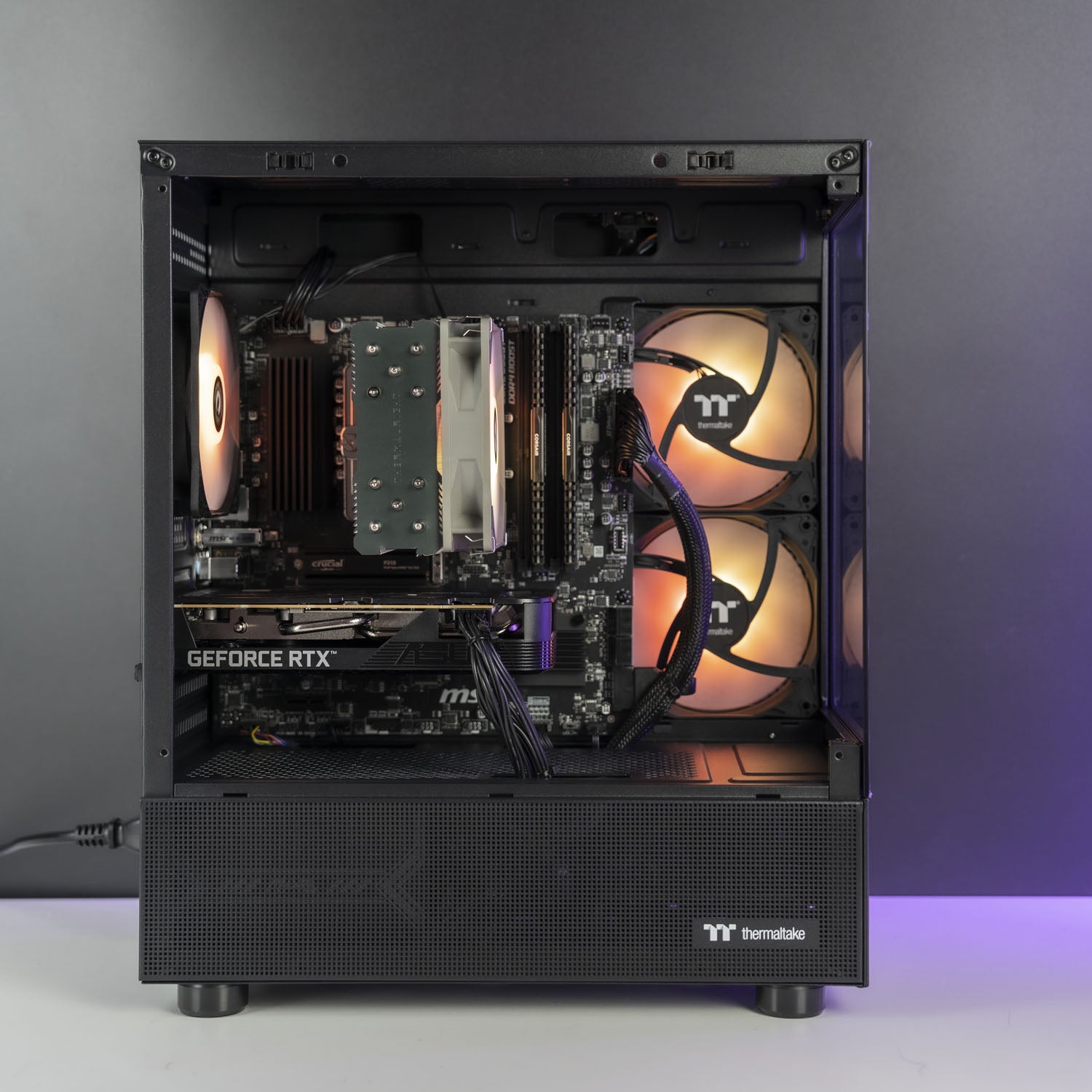
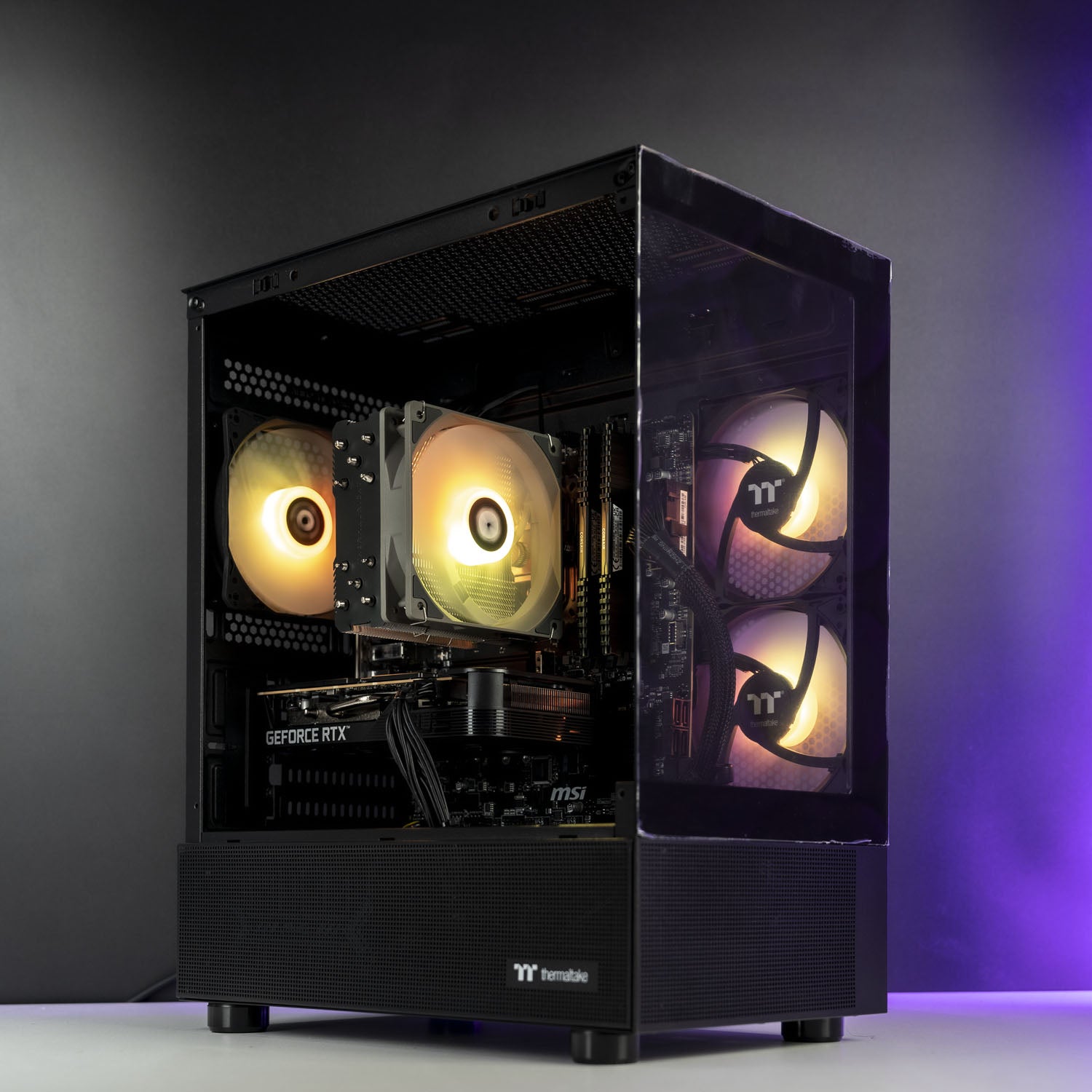
AMD Gaming PC | Ryzen 5 5600X | RTX 5060 8GB | 16GB DDR4 | 1TB SSD | Thermaltake View 170
AMD Gaming PC | Ryzen 5 5600X | RTX 5060 8GB | 16GB DDR4 | 1TB SSD | Thermaltake View 170
Sydney Workshop
Unit 1, 6 Kulgoa Ave
Ryde NSW 2112
澳大利亚
Overview
Take your gaming to the next level with our NVIDIA RTX 5060 8GB Pre-Built Gaming PC! Powered by the amazing 6 cores Ryzen 5 5600, this system is designed to deliver amazing 1080P that won't disappoint.
Elevate your gaming to the next level with this exceptional value gaming PC, backed by a 24-months warranty.
Dimensions
Case: Thermaltake View 170 mATX – Black
Size: 377.5 × 212 × 438 mm
Delivery & Pickup
Dispatch in 2-3 business days.
Pickup in 2-3 business days from Sydney Workshop.
Orders are shipped Australia-wide.
Warranty & Returns
Every system includes a 2-year Return to Base warranty from the date of purchase, in addition to your rights under the Australian Consumer Law.
FPS Performance

Results based on High settings — performance may vary depending on game version, map, or resolution.
BEFORE YOU PLACE THE ORDER
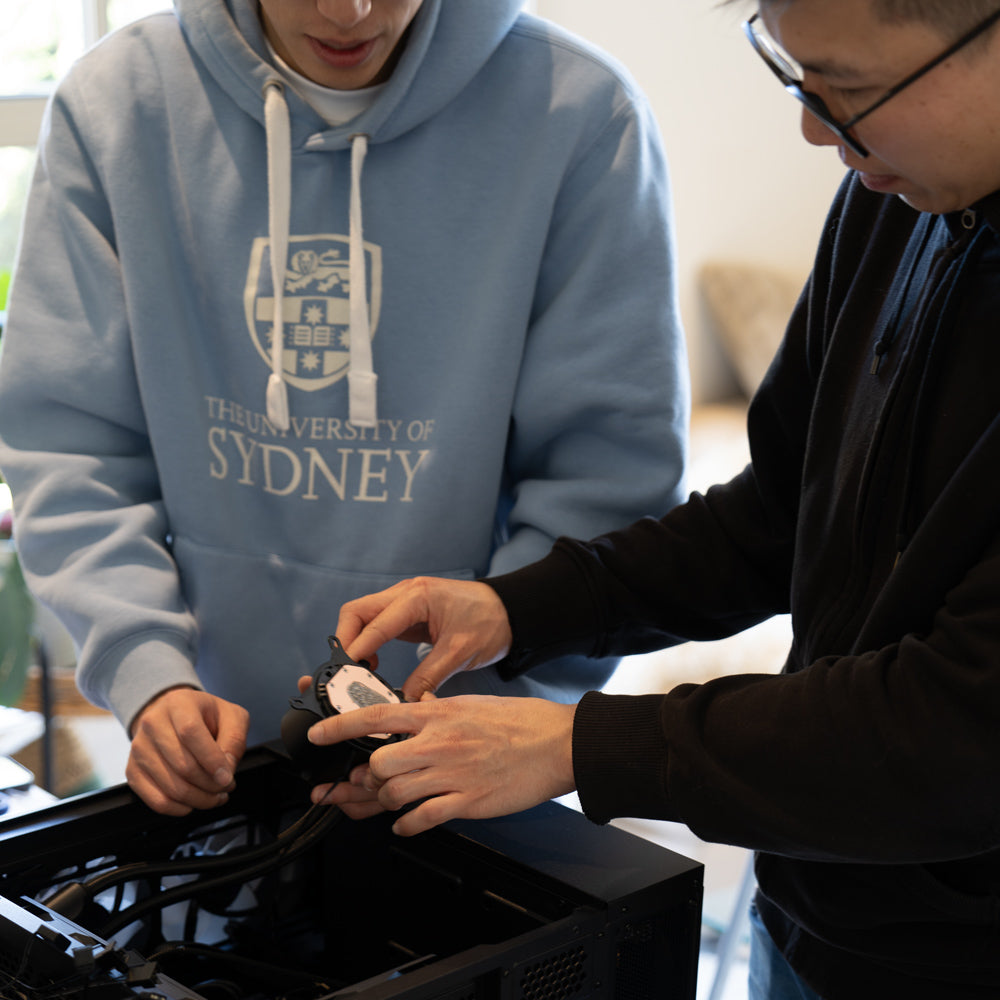
1. Choose your gaming rig
Not sure which gaming PC is right for you?
Give us a buzz and our team will help you out.
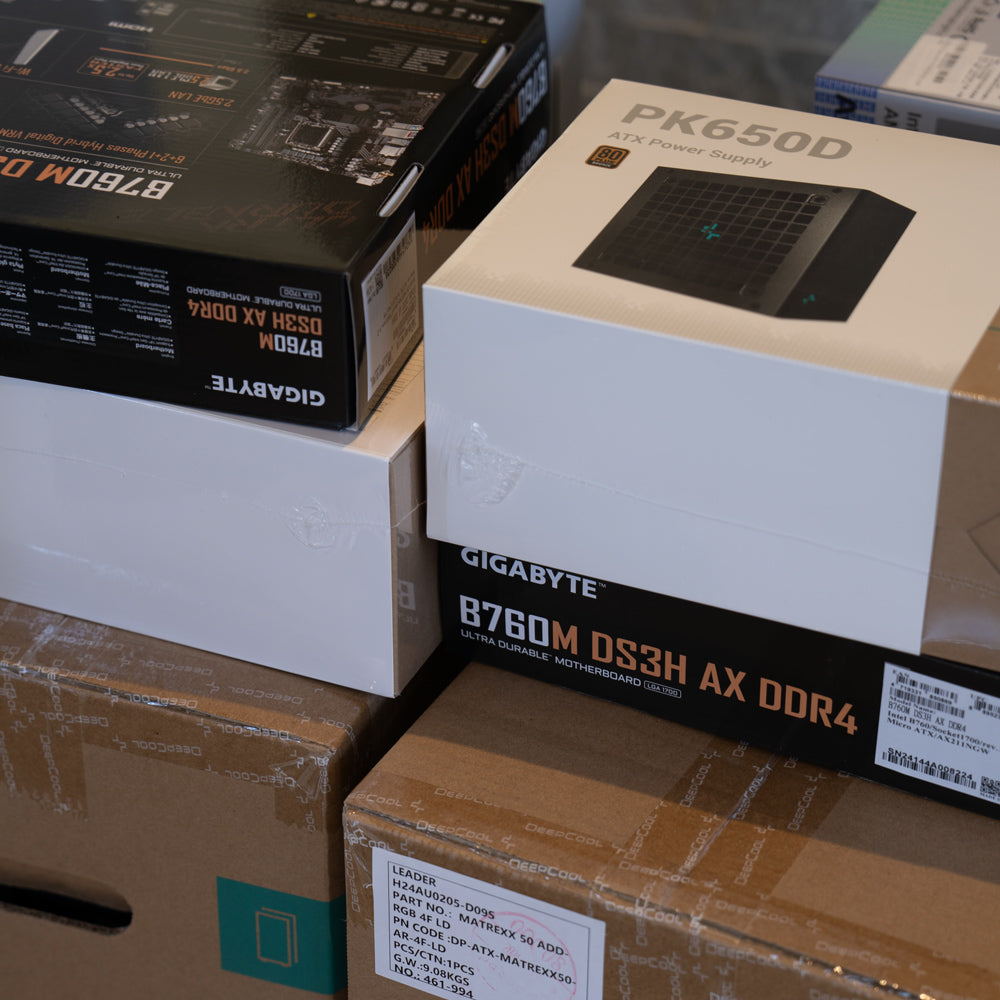
2. Place your order
In-stock ready-to-go PCs will be despatched within 24 hours.
Custom PCs will be despatched in 3-4 business days.
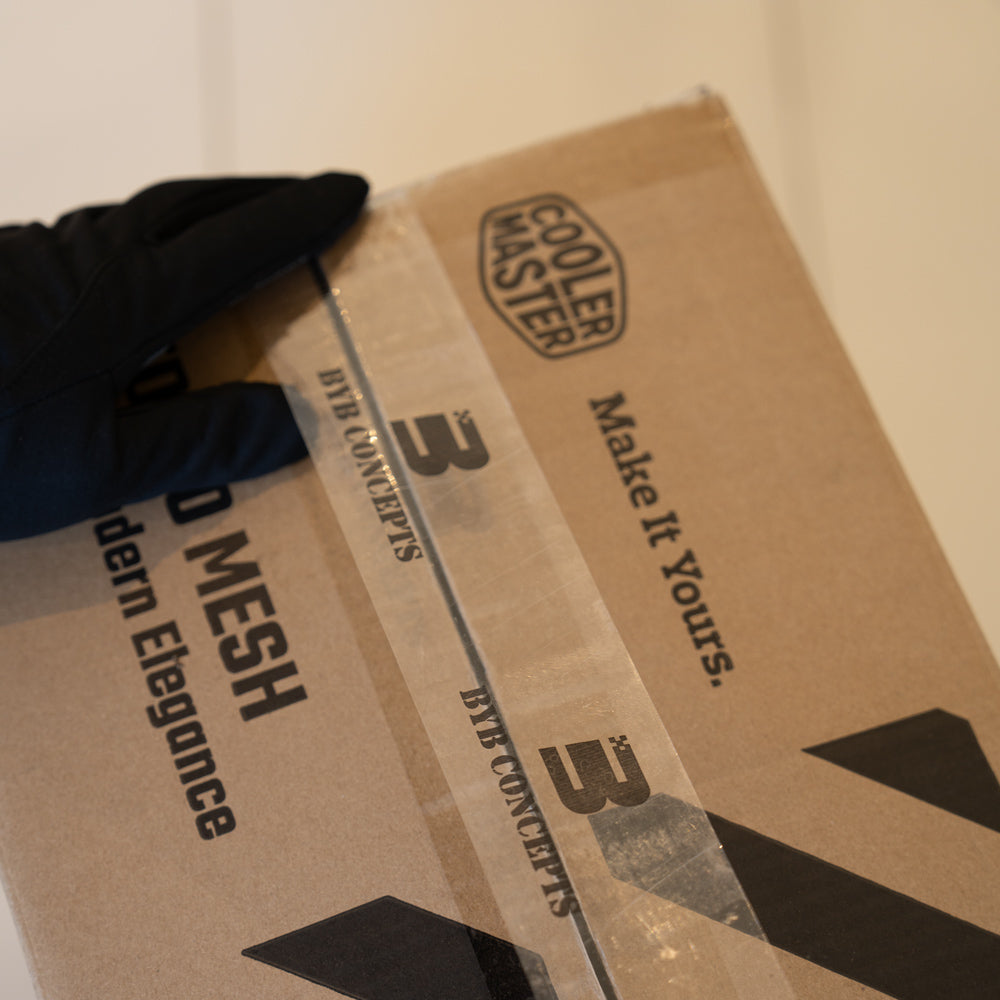
3. Packaging
We securely package your gaming PC to ensure it arrives without any damage.
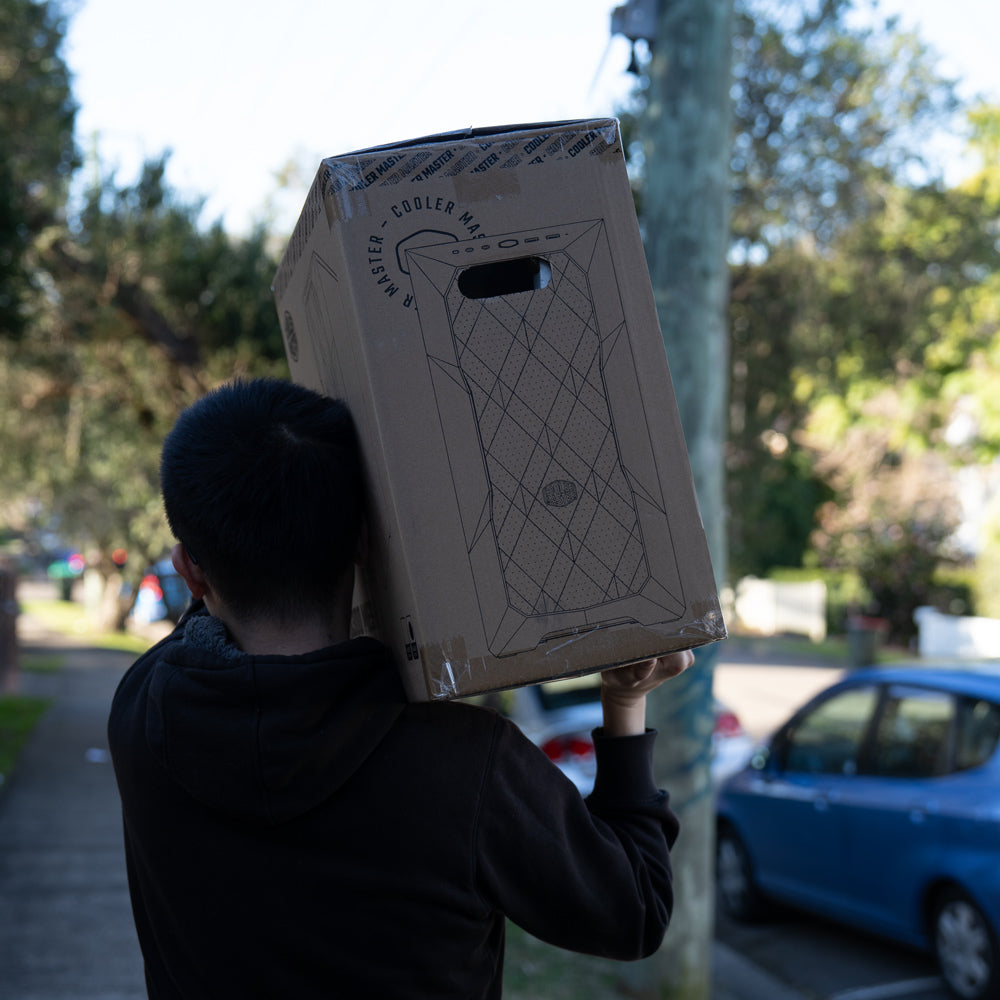
4. Shipping
Your PC Order will arrive in a few business days (Longer transit time for regional areas)
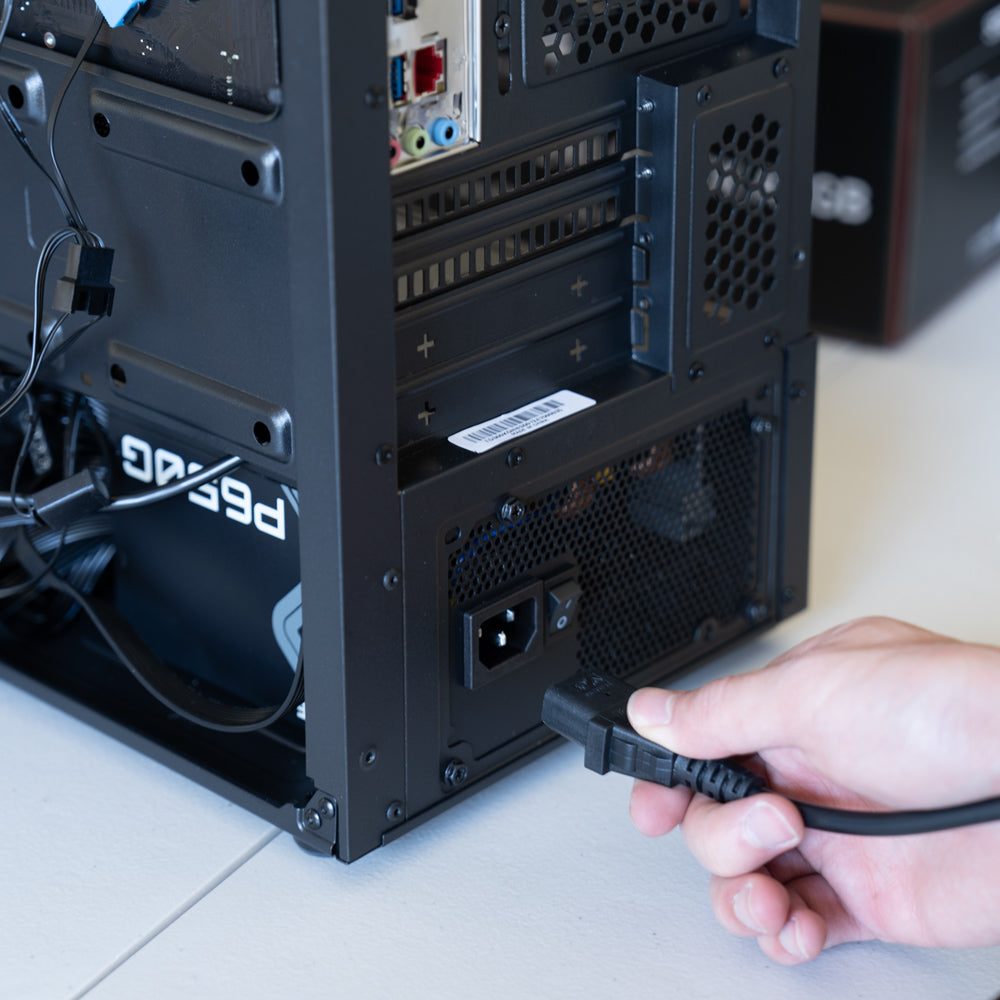
5. Plug-And-Play
Carefully unpack your new PC, connect everything properly and enjoy!
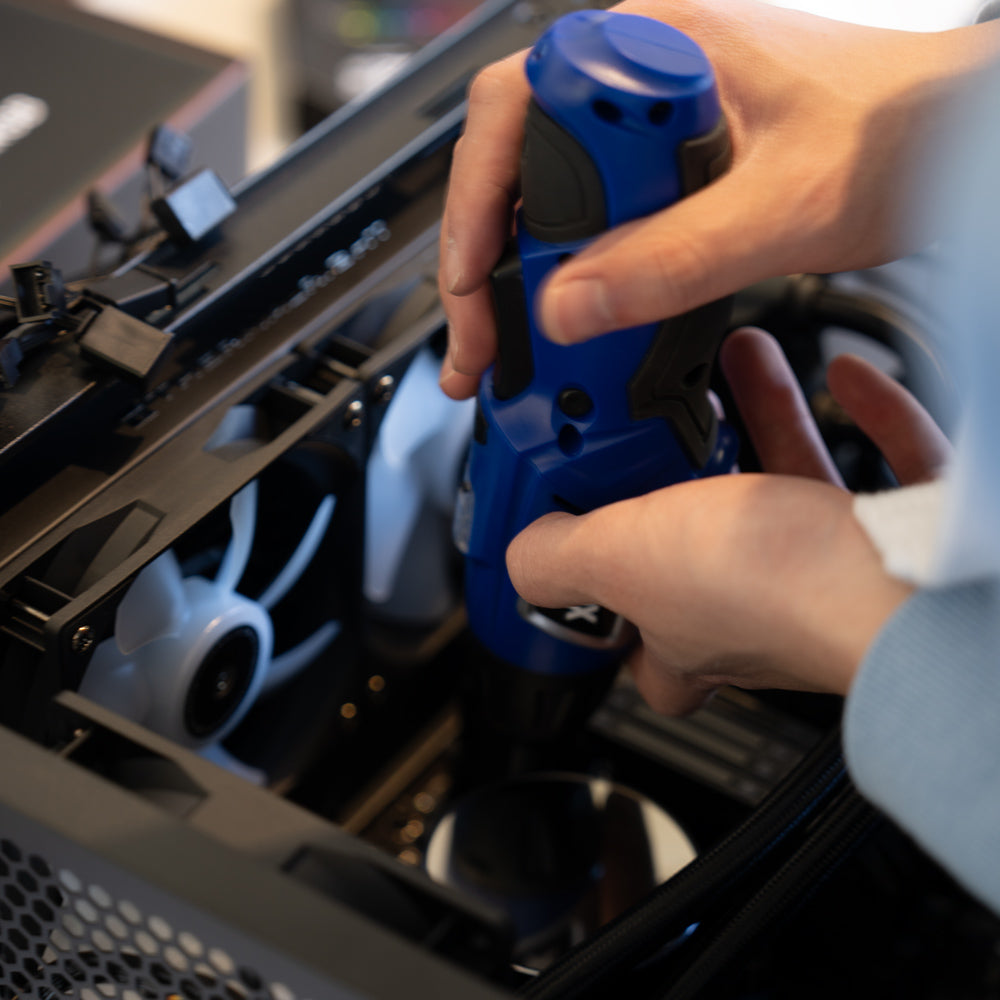
6. Have any Questions?
We're here to help!
Contact us anytime for assistance. With 2 Years warranty support.
UNBOX YOUR DREAM PC
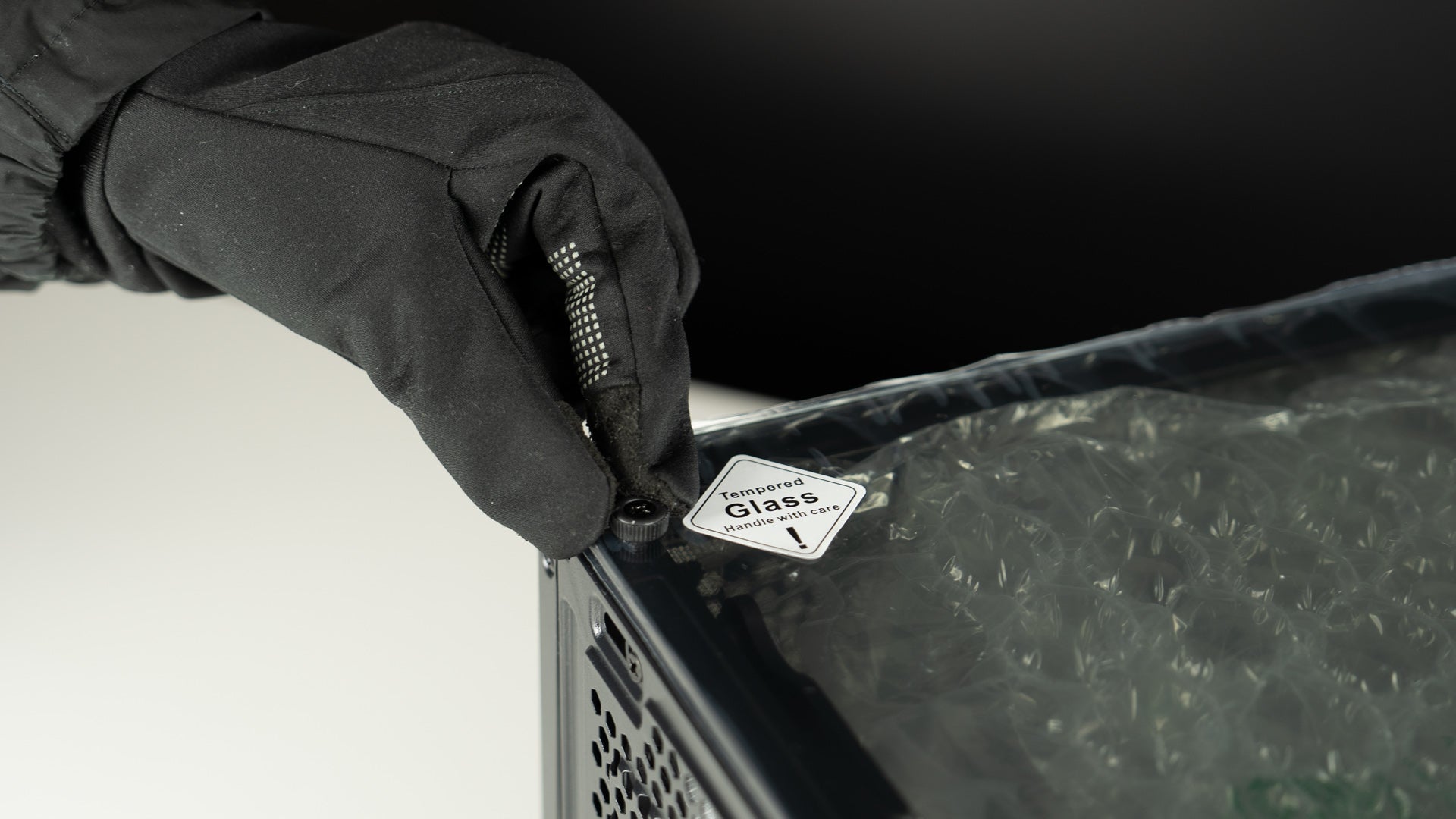
Step 1: Unscrew the Glass Panel
After receiving the computer, unpack the box, place the computer on a flat surface, and unscrew the glass panel screws.
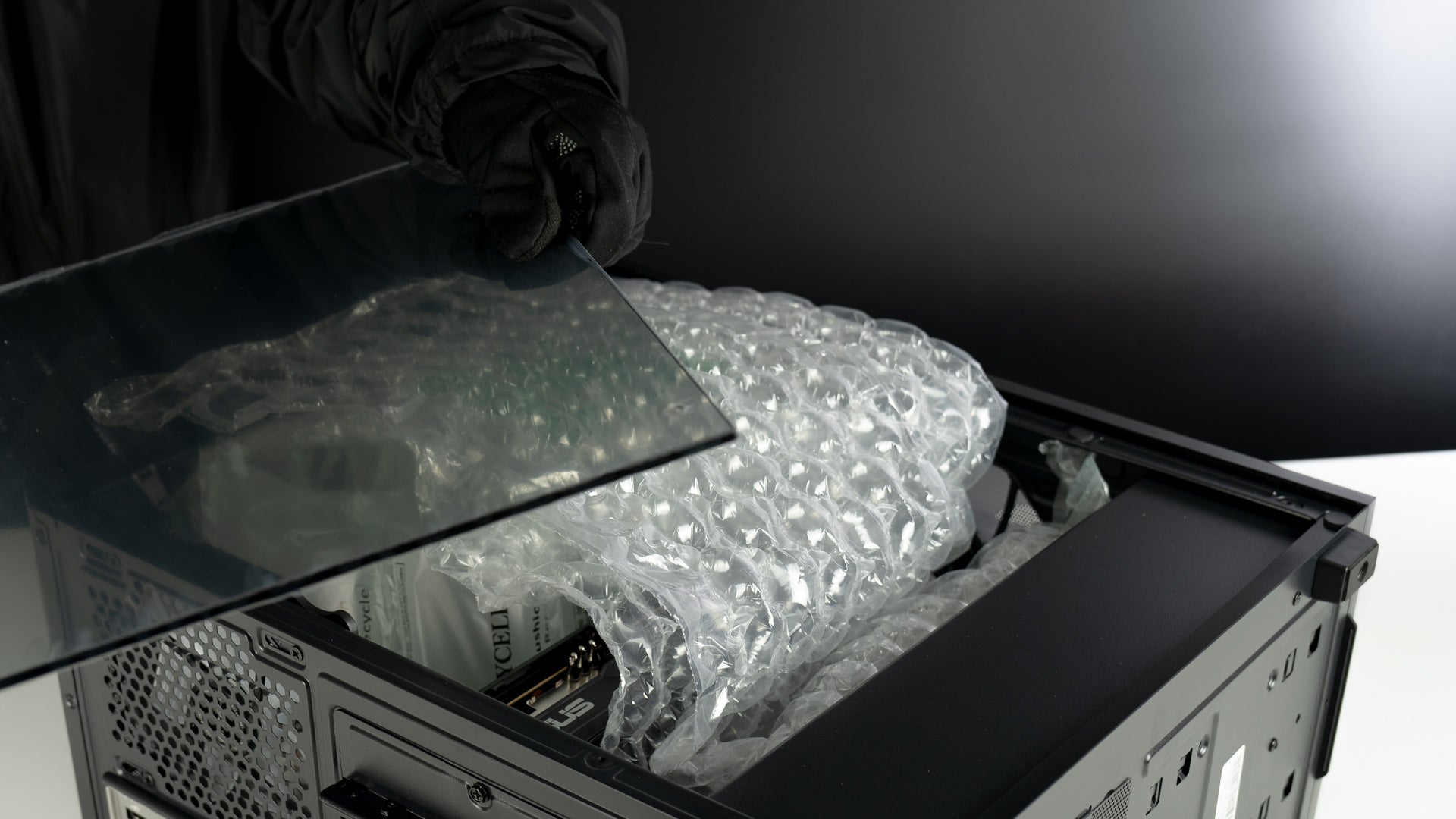
Step 2: Carefully Remove the Glass Panel
Gently lift the glass panel away from the computer case. Hold the panel securely with both hands to avoid any slips or falls.
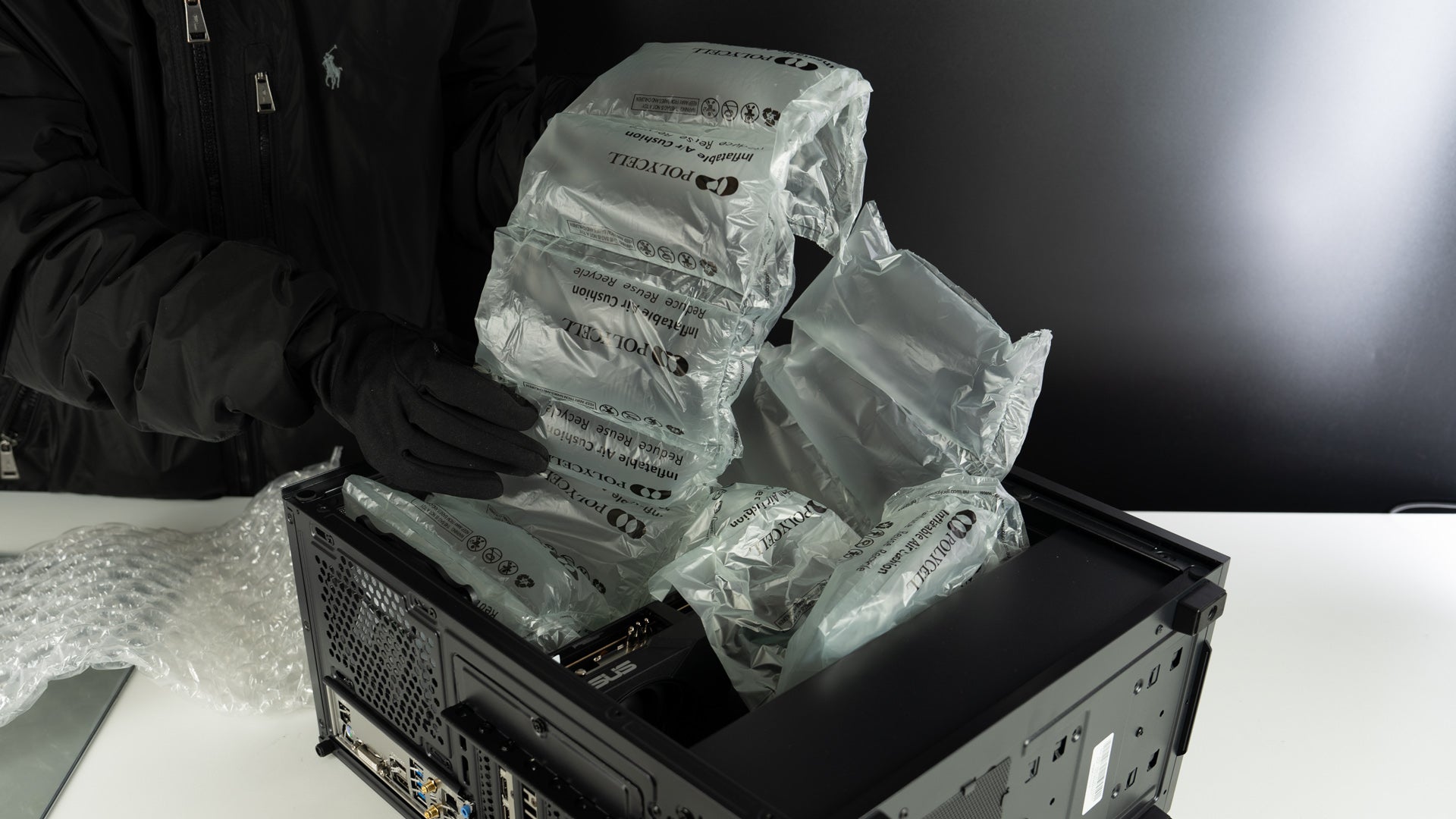
Step 3: Remove the Packing Materials Inside the Case
Carefully take out any foam, plastic, or other packing materials from inside the computer case.
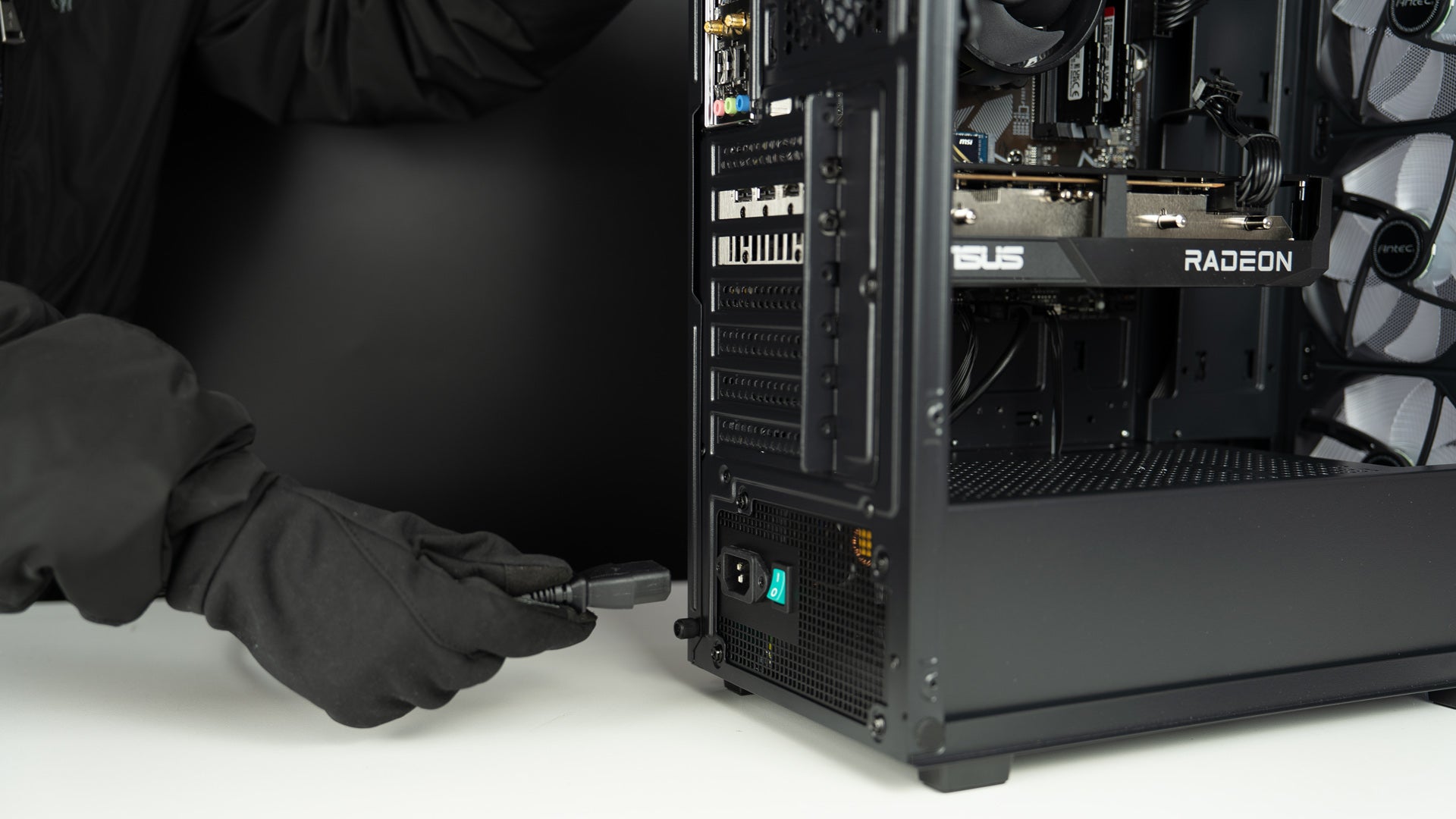
Step 4: Plug in the Power Cable
Insert the power cable into the back of the PC and plug it into a power outlet. Then connect your keyboard, mouse, monitor, and other devices.

Step 5: Plug Your Monitor Cable into the Graphics Card
Connect your monitor using an HDMI or DisplayPort (DP) cable. Make sure the cable is plugged into the graphics card, not the motherboard.

Step 6: Connect the Wi-Fi Antenna
Attach the Wi-Fi antenna to the Wi-Fi ports on the back of the PC, tighten it gently, and you are good to go.