


AMD Gaming PC | Ryzen 7 9800X3D | RTX 5080 16GB | 32GB DDR5 | 2TB SSD | Antec C5 WHITE
AMD Gaming PC | Ryzen 7 9800X3D | RTX 5080 16GB | 32GB DDR5 | 2TB SSD | Antec C5 WHITE
Sydney Workshop
Kulgoa Avenue
Ryde NSW 2112
Australia
Sydney Workshop - Ready-To-Go Prebuild PCs
Kulgoa Avenue
Ryde NSW 2112
Australia
✅ Processor: AMD Ryzen 7 9800X3D – 8 Cores / 16 Threads (AM5)
✅ Memory: Biwin DW100 32GB (2×16GB) DDR5 6000MT/s CL30 RGB – White
✅ Graphics Card: MSI RTX 5080 16GB Gaming Trio – White
✅ Motherboard: MSI MPG B850 Edge TI WiFi 7 AM5
✅ Storage: Lexar Ares Pro 2TB Gen5 SSD (Read: 14000 MB/s Write: 1,0000 MB/s )
✅ Case: Antec C5 ATX Case – White
✅ Power Supply: MSI AG850L 850W 80+ Gold Fully Modular ATX 3.1 – White
✅ Cooling: TRYX Stage 360mm AIO Liquid Cooler – White
✅ Connectivity: WiFi 7 + Bluetooth 5.4
✅ Operating System: Windows 11 Pro 64-Bit
Built around the AMD Ryzen 7 9800X3D — the top choice for competitive eSports and AAA gaming — paired with the MSI RTX 5080 16GB, this stunning all-white build is engineered for serious 1440p and 4K gaming performance. The 9800X3D's legendary 3D V-Cache architecture ensures maximum frame rates in titles like Valorant, Fortnite, CS2, and the latest AAA releases, while the RTX 5080 handles everything 4K throws at it with ease. Keeping it all cool is the brand new TRYX Stage 360mm AIO — TRYX's latest liquid cooler featuring a bold, modern design with stunning ARGB lighting that ties the entire white build together beautifully. Clean, white, and powerful — this is the complete package.
Professionally built, fully stress-tested, and backed by a 2-year return-to-base warranty with local Australian support.
FPS Performance

Results based on High settings — performance may vary depending on game version, map, or resolution.
BEFORE YOU PLACE THE ORDER
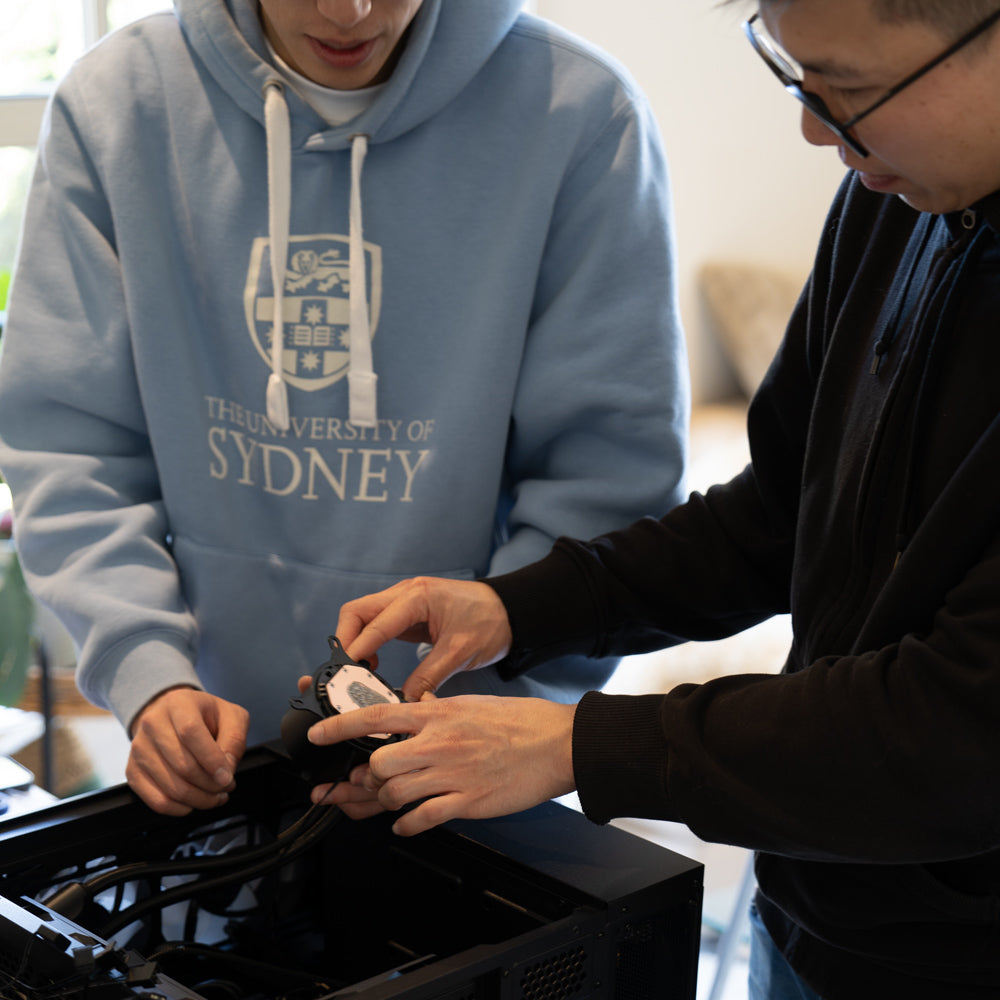
1. Choose your gaming rig
Not sure which gaming PC is right for you?
Give us a buzz and our team will help you out.
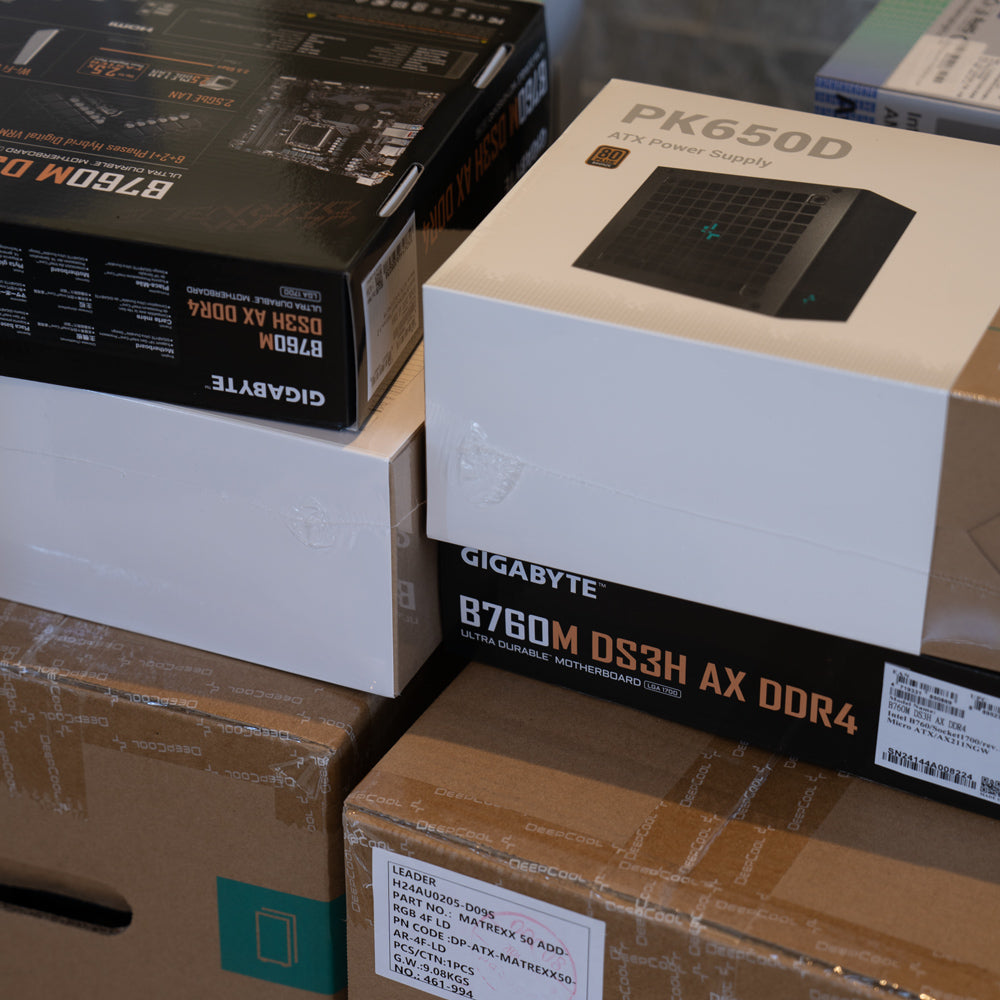
2. Place your order
In-stock ready-to-go PCs will be despatched within 24 hours.
Custom PCs will be despatched in 3-4 business days.
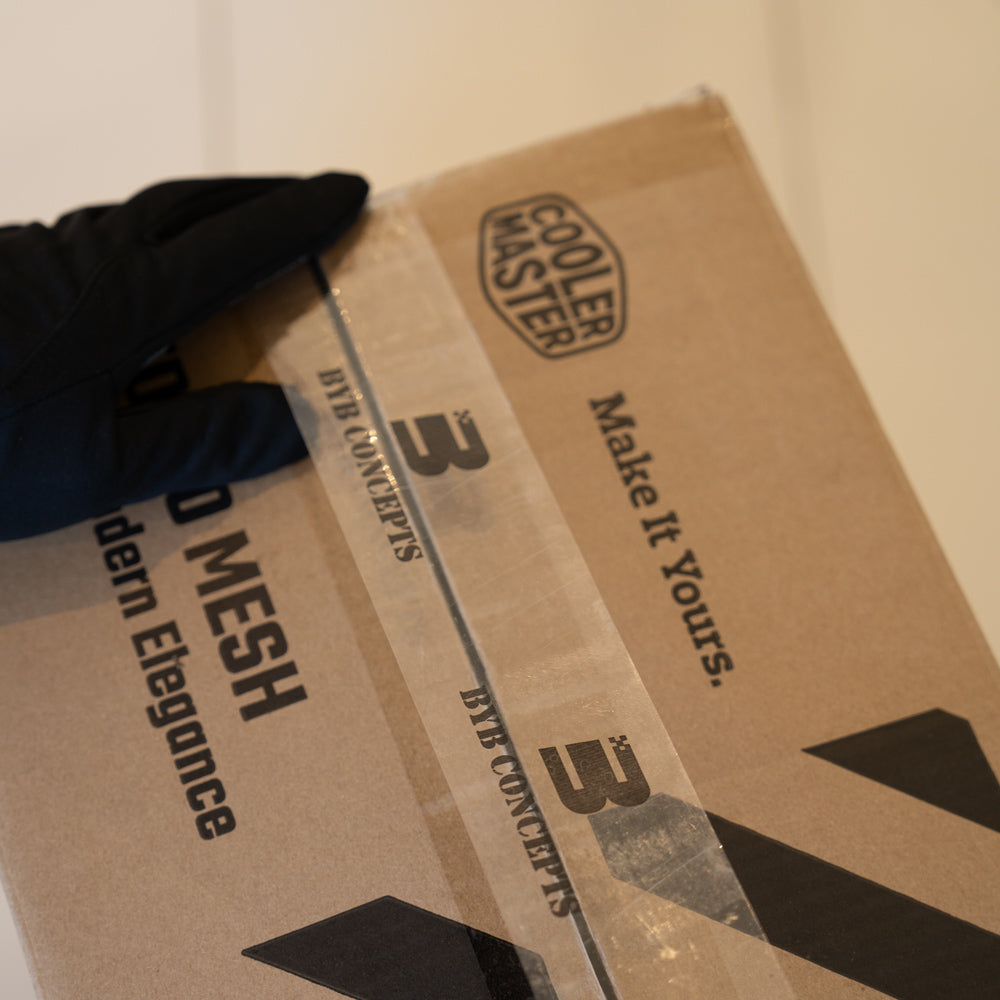
3. Packaging
We securely package your gaming PC to ensure it arrives without any damage.
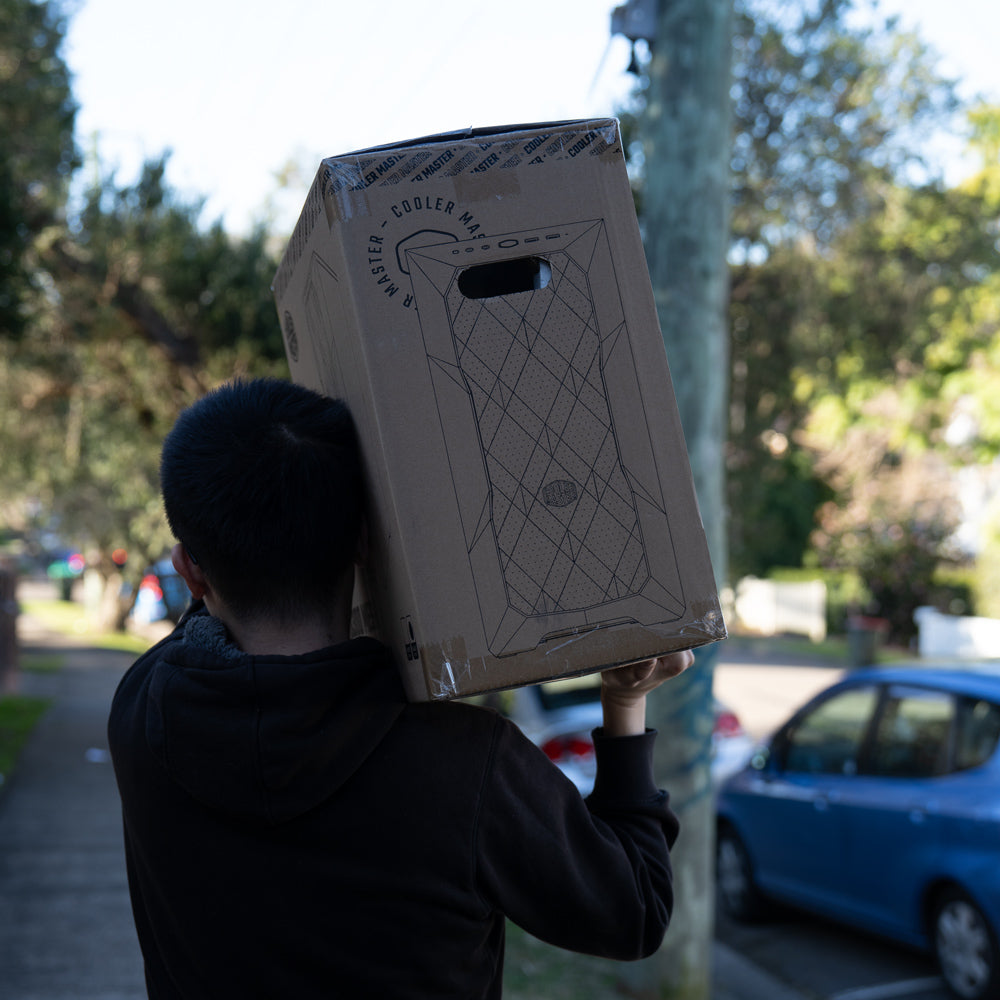
4. Shipping
Your PC Order will arrive in a few business days (Longer transit time for regional areas)
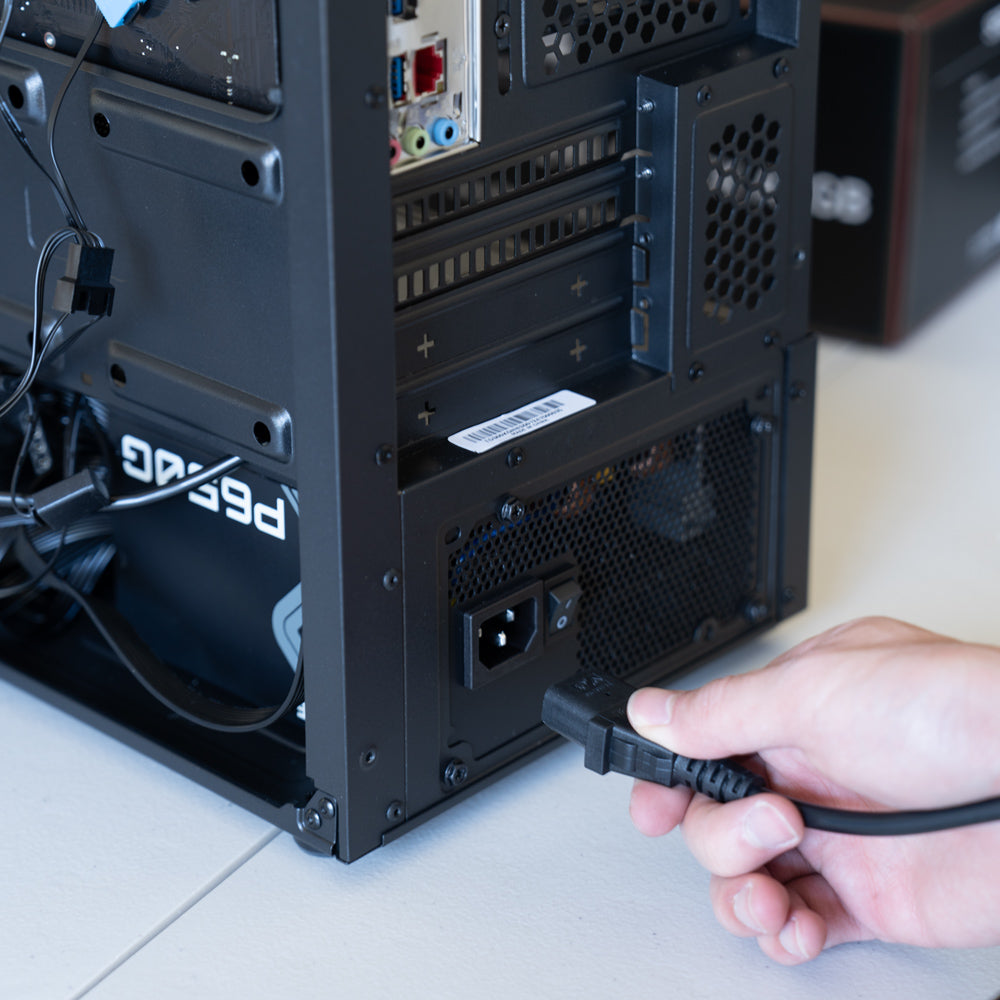
5. Plug-And-Play
Carefully unpack your new PC, connect everything properly and enjoy!
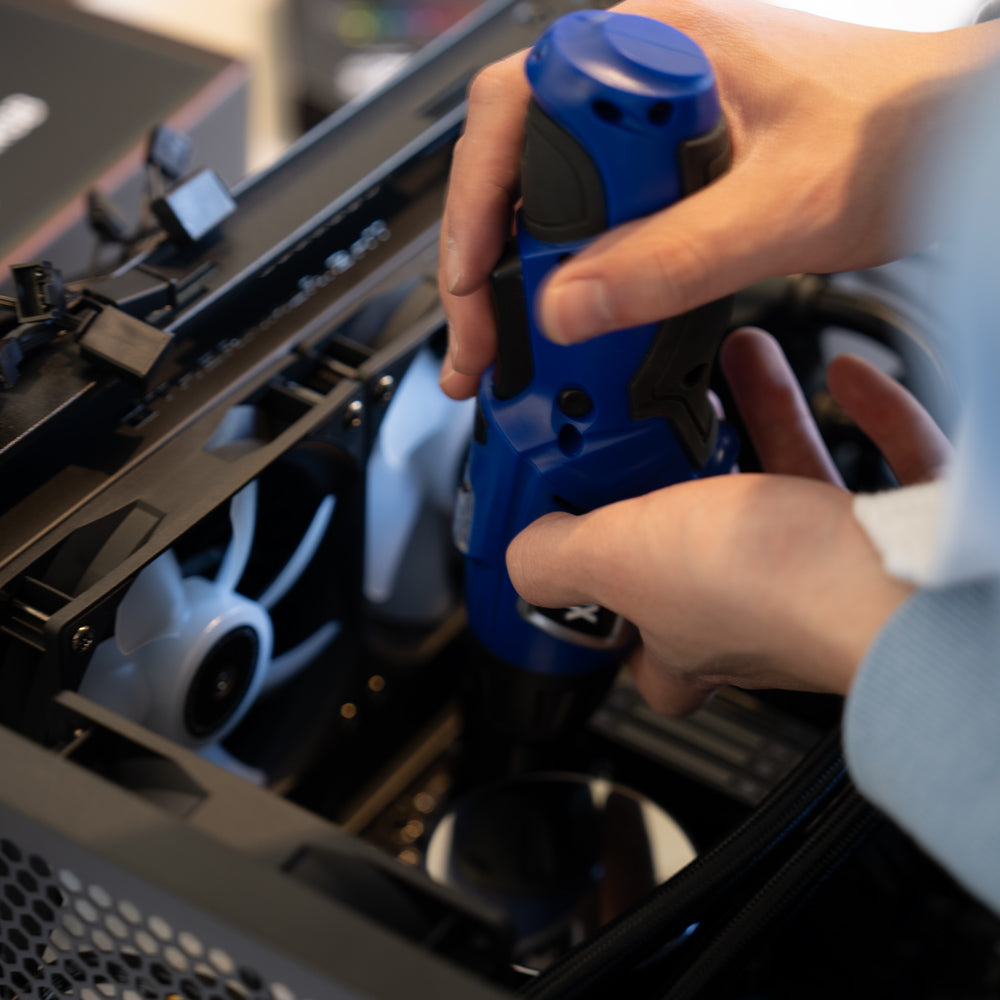
6. Have any Questions?
We're here to help!
Contact us anytime for assistance. With 2 Years warranty support.
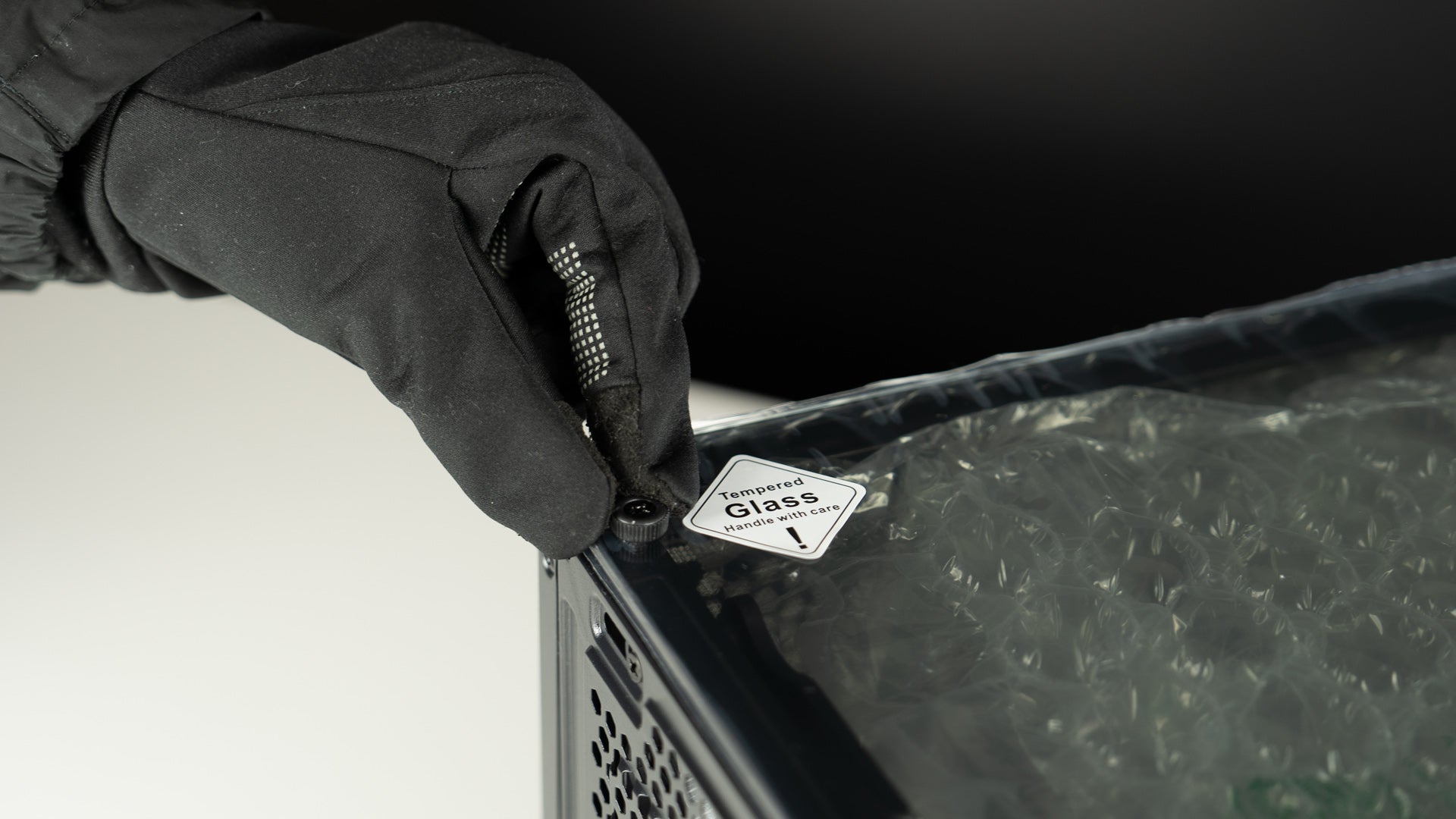
Step 1: Unscrew the Glass Panel
After receiving the computer, unpack the box, place the computer on a flat surface, and unscrew the glass panel screws.
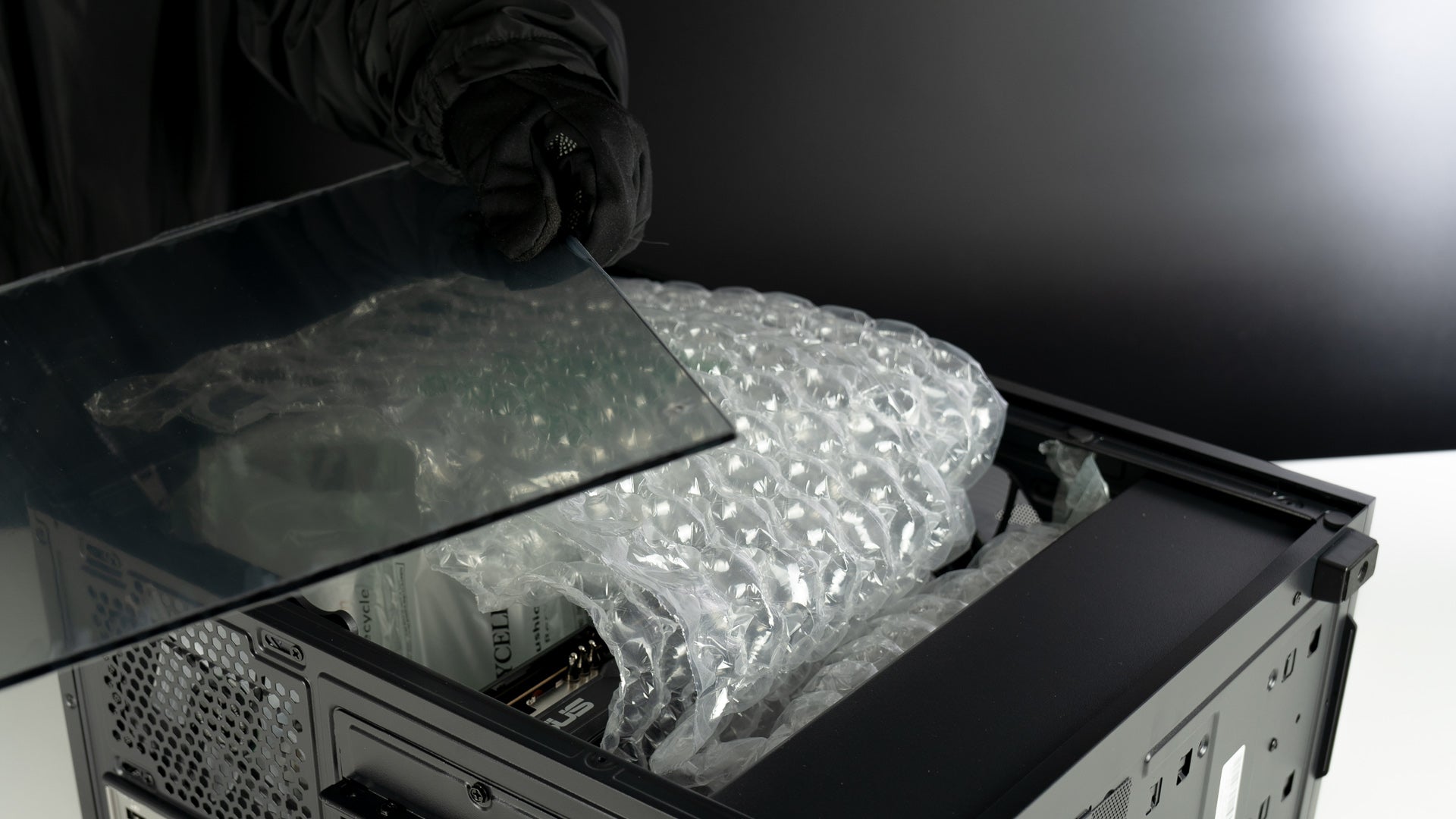
Step 2: Carefully Remove the Glass Panel
Gently lift the glass panel away from the computer case. Hold the panel securely with both hands to avoid any slips or falls.
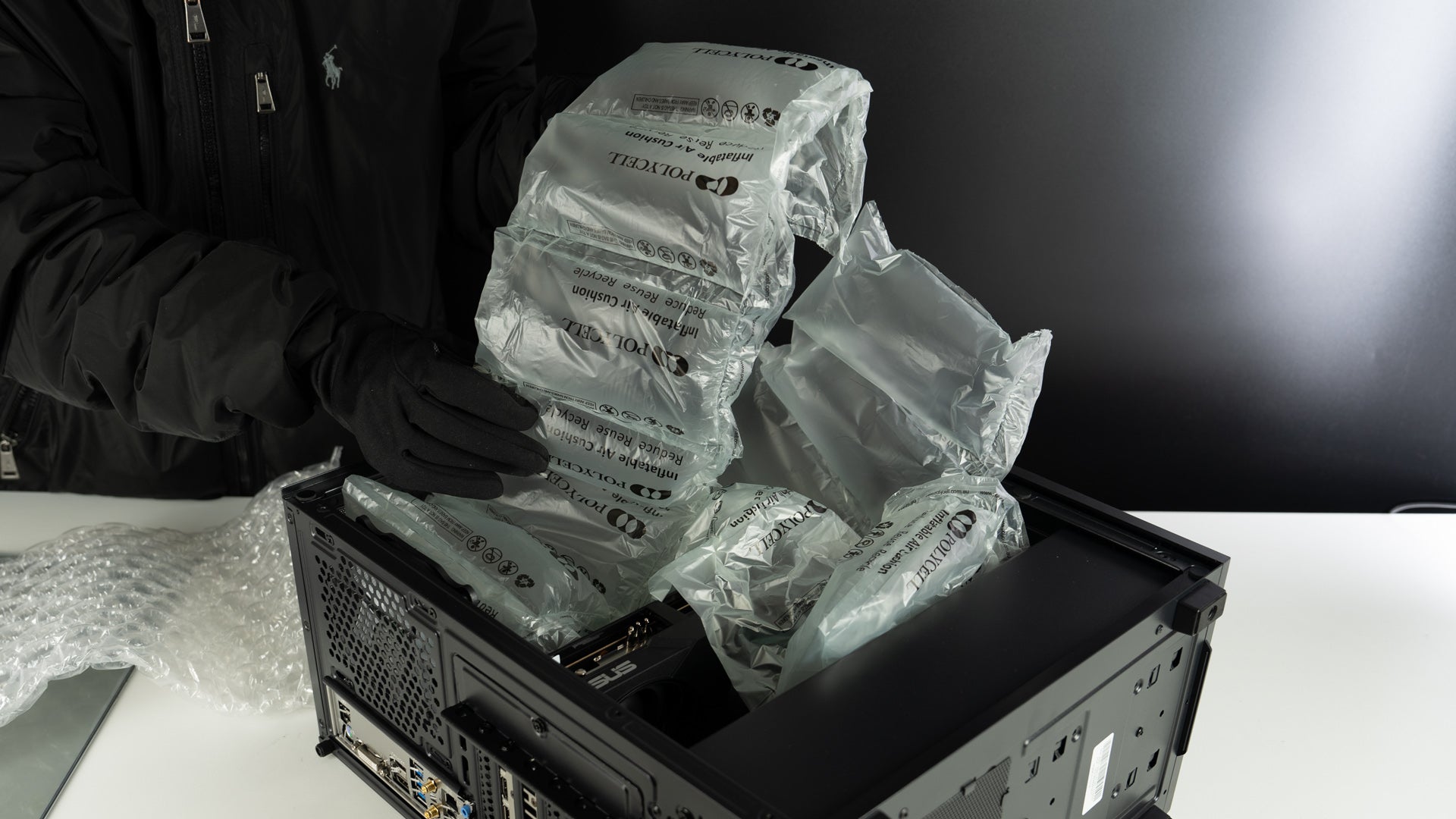
Step 3: Remove the Packing Materials Inside the Case
Carefully take out any foam, plastic, or other packing materials from inside the computer case.
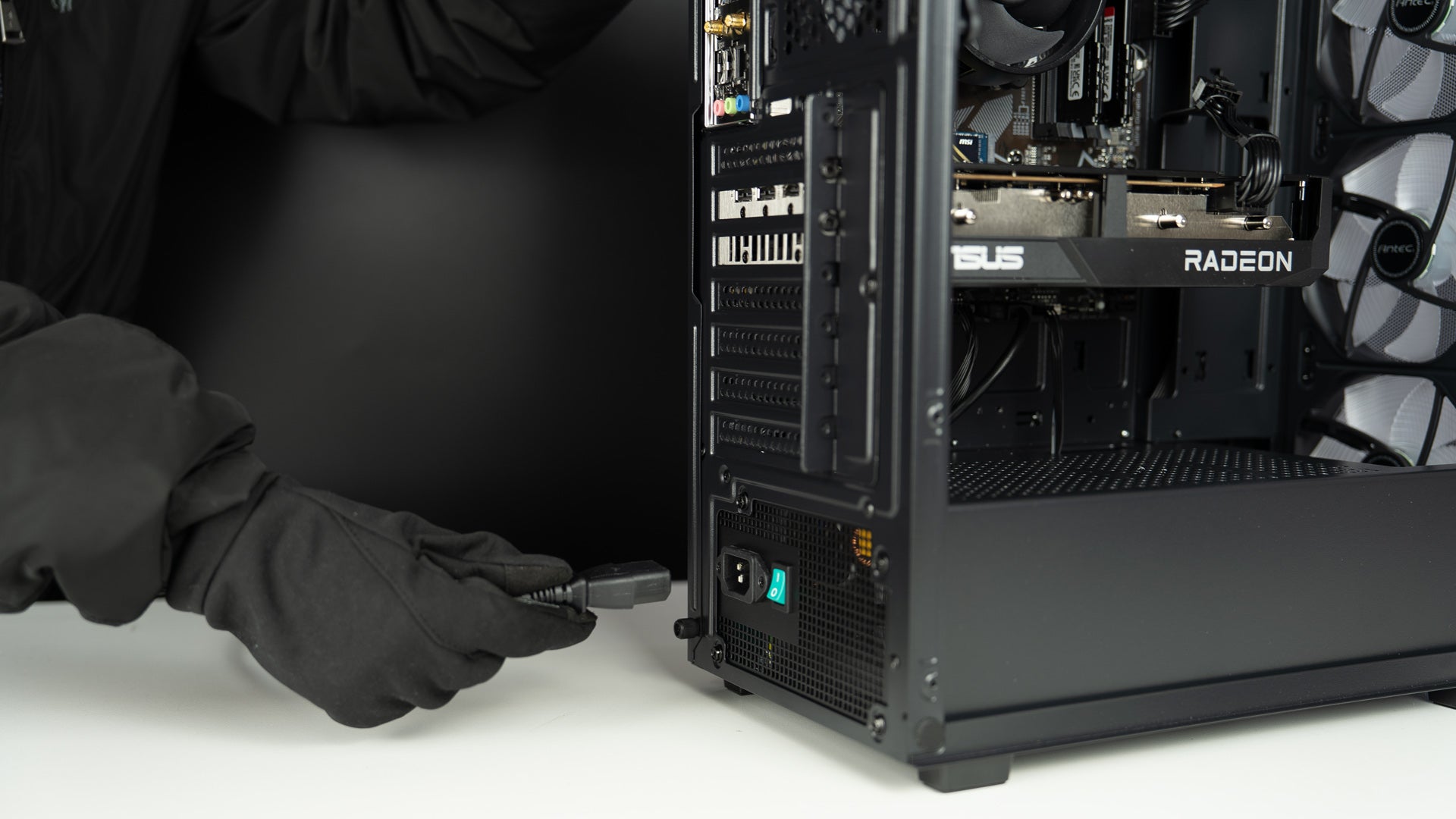
Step 4: Plug in the Power Cable
Insert the power cable into the back of the PC and plug it into a power outlet. Then connect your keyboard, mouse, monitor, and other devices.

Step 5: Plug Your Monitor Cable into the Graphics Card
Connect your monitor using an HDMI or DisplayPort (DP) cable. Make sure the cable is plugged into the graphics card, not the motherboard.

Step 6: Connect the Wi-Fi Antenna
Attach the Wi-Fi antenna to the Wi-Fi ports on the back of the PC, tighten it gently, and you are good to go.